
RHEL 10 图形桌面:安装 GNOME 并通过 VNC 查看
This content is not available in your language yet.
RHEL 10 默认是最小化安装,没有图形桌面。需要桌面时,装 Server with GUI 组、把默认 target 切到 graphical.target,再通过 VNC/noVNC 或物理显示器登录 GDM。
本文在 PVE 的 RHEL 10.2 虚拟机上实测:gdm 47.0、gnome-shell 49.4,graphical.target 为默认,gdm 服务 active。
1. 确认系统与仓库
Section titled “1. 确认系统与仓库”cat /etc/redhat-release# Red Hat Enterprise Linux release 10.2 (Coughlan)未注册系统需要先配置可用仓库;本文使用内网 BaseOS/AppStream 仓库:
[lab-baseos]name=lab baseosbaseurl=http://192.168.2.232:8080/rhel10/baseos/gpgcheck=0
[lab-appstream]name=lab appstreambaseurl=http://192.168.2.232:8080/rhel10/appstream/gpgcheck=0sudo dnf repolist2. 安装 Server with GUI
Section titled “2. 安装 Server with GUI”sudo dnf -y groupinstall "Server with GUI"安装完成后核对关键包:
rpm -q gdm gnome-shell# gdm-47.0-24.el10_2.x86_64# gnome-shell-49.4-9.el10_2.x86_643. 切换默认 target 并启动 GDM
Section titled “3. 切换默认 target 并启动 GDM”sudo systemctl set-default graphical.targetsudo systemctl start gdmsystemctl get-default# graphical.targetsystemctl is-active gdm# active如果只想临时进图形界面、不改变默认启动:
sudo systemctl isolate graphical.target4. 通过 VNC/noVNC 查看桌面
Section titled “4. 通过 VNC/noVNC 查看桌面”PVE 虚拟机直接用控制台的 noVNC 即可,不需要额外装 VNC Server:
- PVE 选中虚拟机 → Console → noVNC;
- 看到 GDM 登录框后选择用户;
- 输入密码,进入 GNOME 桌面。
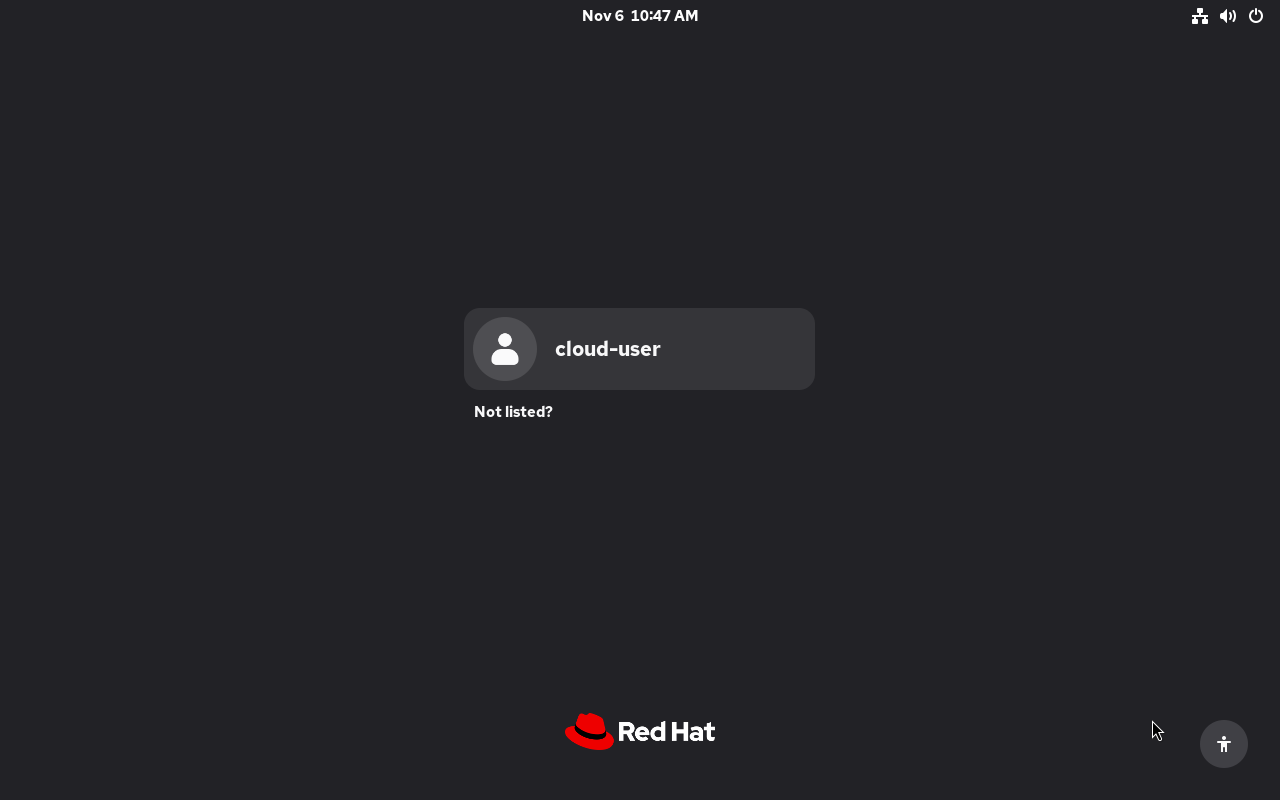
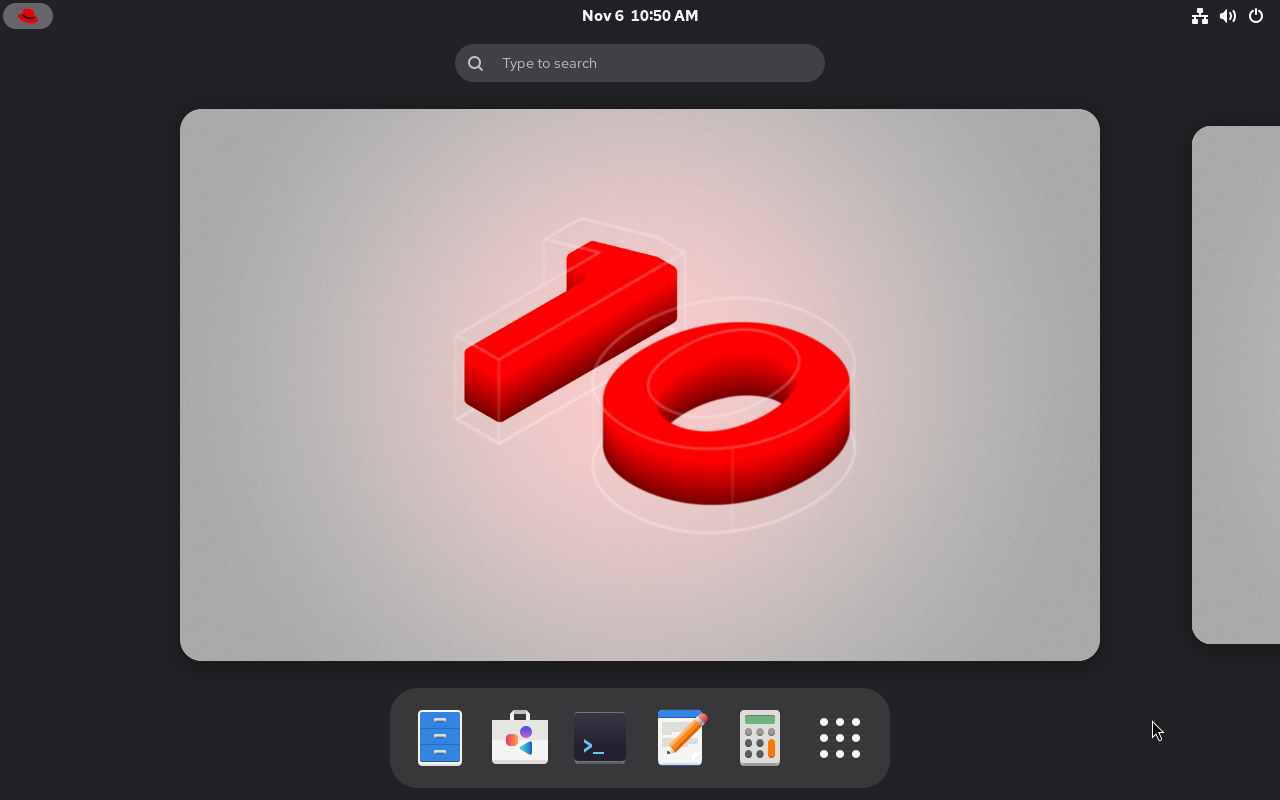
5. 远程桌面的两种补充方式
Section titled “5. 远程桌面的两种补充方式”| 方式 | 适用 | 说明 |
|---|---|---|
| PVE noVNC | 虚拟机 | 零配置,本文实测 |
| xrdp | 跨网 RDP | 需装 xrdp,开放 3389;本文未实测 |
| VNC Server | 传统 VNC | 需装 tigervnc-server 并配置会话;本文未实测 |
未实测与边界
Section titled “未实测与边界”- 本文只验证 PVE noVNC + GDM/GNOME,不覆盖 xrdp、TigerVNC、Wayland 远程协议;
- 未测试多用户同时登录、音频、USB 重定向、3D 加速;
- 未注册 RHEL 时,仓库需另行提供;订阅环境请用 CDN 或 Satellite。